Step by step
Open Pages
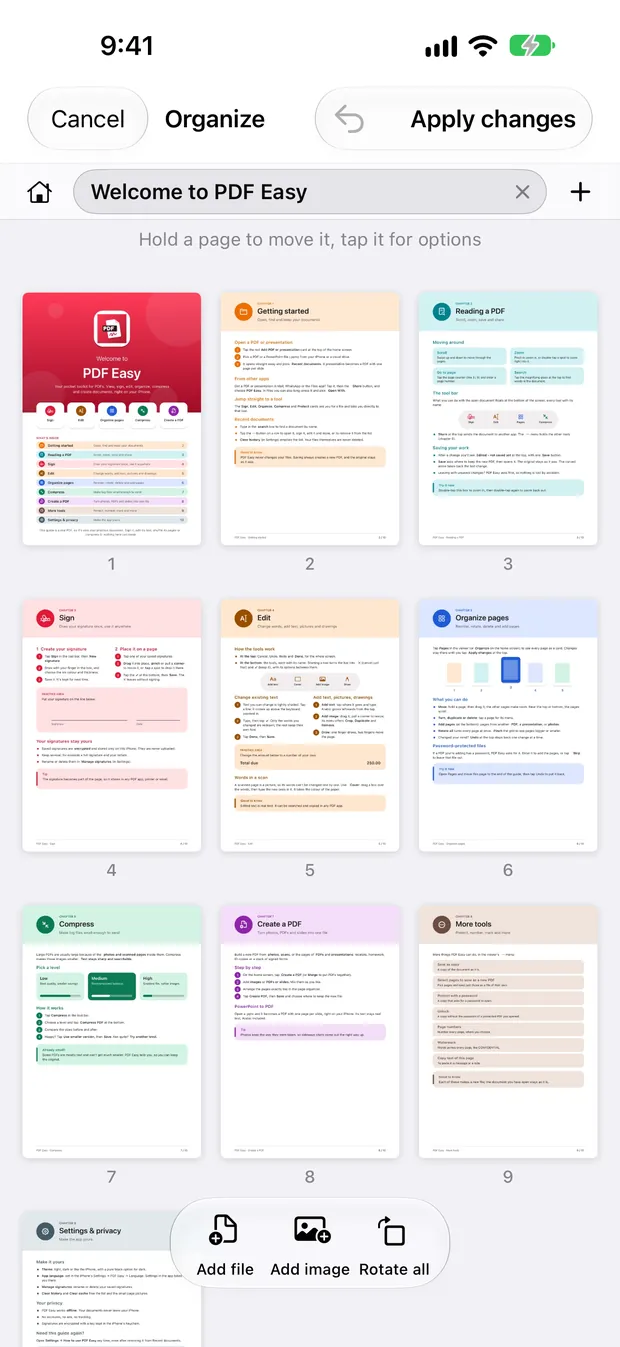
Tap Pages in the viewer, or the Organize card on the home screen. Every page appears as a card.
Move pages
Hold a page, then drag it. The other pages make room.
Rotate, duplicate or delete
Tap a page for its menu. Rotate all turns every page at once.
Add pages
Tap Add pages at the bottom to bring in pages from another PDF, a presentation or photos.
Apply and save
Tap Apply changes at the top, then Save. Your original stays as it was.
Good to know
- Changed your mind? Undo at the top steps back one change at a time.
- Pinch the grid to see the pages bigger or smaller.
- On iPad you can drag pages from one document to another.
Questions
Can I undo a mistake?
Yes. Undo steps back one change at a time, and nothing is final until you tap Apply changes.
Can I add pages from another PDF?
Yes. Use Add pages to bring in pages from another PDF, a presentation or photos.
Is it free?
Yes, every feature in PDF Easy is free.
More guides
How to sign a PDF on your iPhone, for free
Open the PDF in PDF Easy, tap Sign, draw your signature once, drag it into place, then tap ✓ and Save. It's free, works offline and needs no account.
Read the guide →How to edit the text in a PDF on your phone
Open the PDF in PDF Easy, tap Edit, tap the shaded line you want to change, type the new words and tap ✓, then tap Done and Save.
Read the guide →How to merge PDF files into one on your phone
On the PDF Easy home screen, tap Merge, add your PDFs, arrange the pages, then tap Create PDF and Save.
Read the guide →