Step by step
Open the PDF
Tap Add PDF or presentation on the home screen, or tap the Edit card to go straight to the editor.
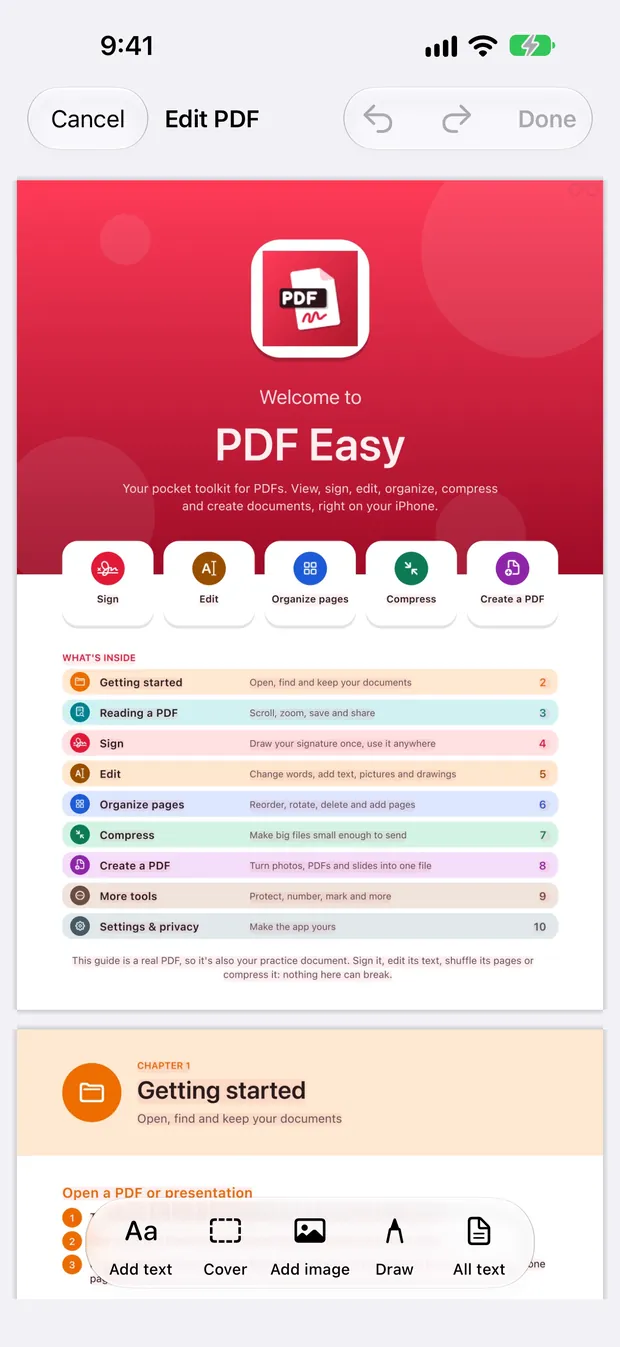
Tap Edit
Tap Edit in the tool bar. Text you can change is lightly shaded.
Change the words
Tap a line. It comes up above the keyboard, zoomed in, so you can see exactly what you type.
Keep the change
Tap ✓. Only the words you changed are redrawn; the rest of the line keeps its own font.
Save
Tap Done at the top, then Save. A new PDF is saved and the original stays as it was.
Good to know
- Editing a scanned page? It's a picture, so use Cover: drag a box over the words and type the new ones. It takes the colour of the paper.
- Add text: tap where it goes and type. Arabic text grows leftwards from where you tap.
- Edited text is real text, so it can be searched and copied in any PDF app.
Questions
Can I edit a scanned PDF?
A scanned page is a picture, so its words can't be changed one by one. Use the Cover tool to place new text over the old words.
Will my PDF keep its font?
Yes. Only the words you change are redrawn; the rest of the page keeps its original font.
Is my original file changed?
No. Your edits are saved as a new file, which you can keep updating.
More guides
How to sign a PDF on your iPhone, for free
Open the PDF in PDF Easy, tap Sign, draw your signature once, drag it into place, then tap ✓ and Save. It's free, works offline and needs no account.
Read the guide →How to merge PDF files into one on your phone
On the PDF Easy home screen, tap Merge, add your PDFs, arrange the pages, then tap Create PDF and Save.
Read the guide →How to make a PDF smaller on your phone
Open the PDF in PDF Easy, tap Compress, choose a level, tap Compress PDF, compare the sizes, then tap Use smaller version and Save.
Read the guide →