Step by step
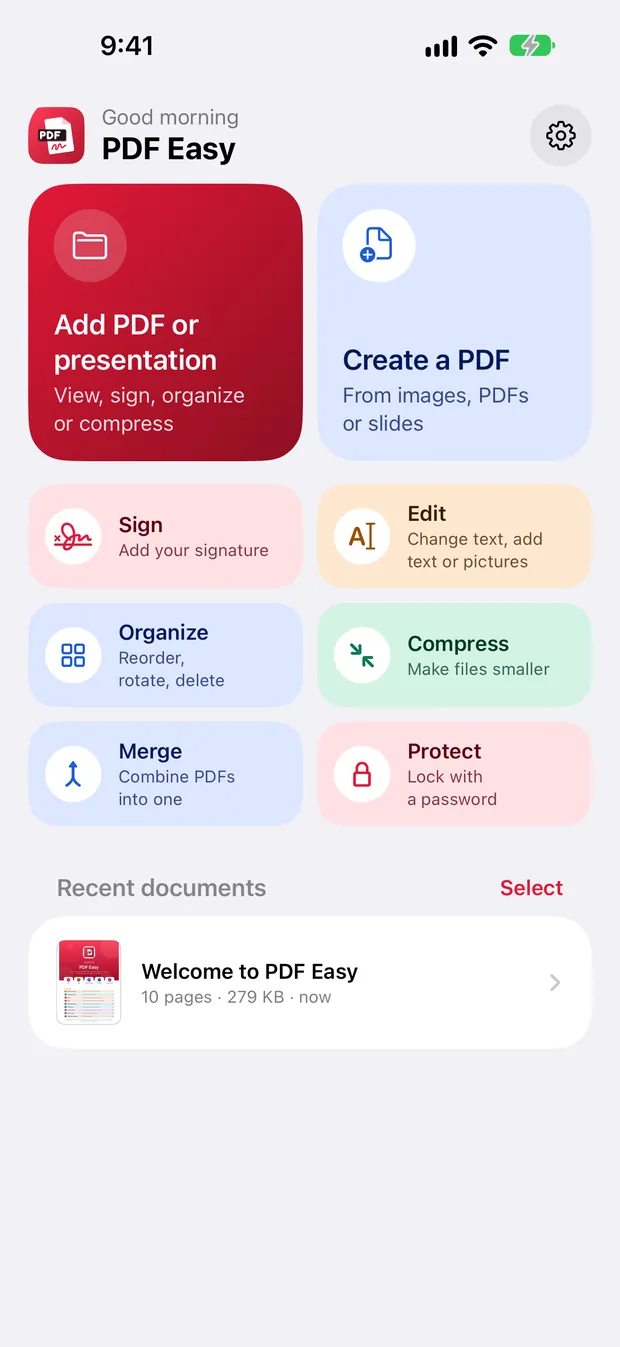
Tap Merge
On the home screen, tap Merge (or Create a PDF).
Add your files
Add PDFs or slides, and photos too if you like. Mix them as you want.
Arrange the pages
Hold a page and drag it into place. Tap a page to turn, duplicate or delete it.
Create the PDF
Tap Create PDF, then Save and choose where to keep the new file.
Good to know
- If one of the PDFs has a password, PDF Easy asks for it. Enter it, or tap Skip to leave that file out.
- Already have a PDF open? Tap Pages, then Add pages to bring in pages from another PDF, a presentation or photos.
- Your files stay on your device the whole time.
Questions
Do my files get uploaded to merge them?
No. PDF Easy merges everything on your device, even without internet.
Can I merge photos and PDFs together?
Yes. Add photos, PDFs and presentation slides to the same new PDF.
Is merging free?
Yes, with no limits, no watermark and no ads.
More guides
How to sign a PDF on your iPhone, for free
Open the PDF in PDF Easy, tap Sign, draw your signature once, drag it into place, then tap ✓ and Save. It's free, works offline and needs no account.
Read the guide →How to edit the text in a PDF on your phone
Open the PDF in PDF Easy, tap Edit, tap the shaded line you want to change, type the new words and tap ✓, then tap Done and Save.
Read the guide →How to make a PDF smaller on your phone
Open the PDF in PDF Easy, tap Compress, choose a level, tap Compress PDF, compare the sizes, then tap Use smaller version and Save.
Read the guide →