Step by step
Open the PDF
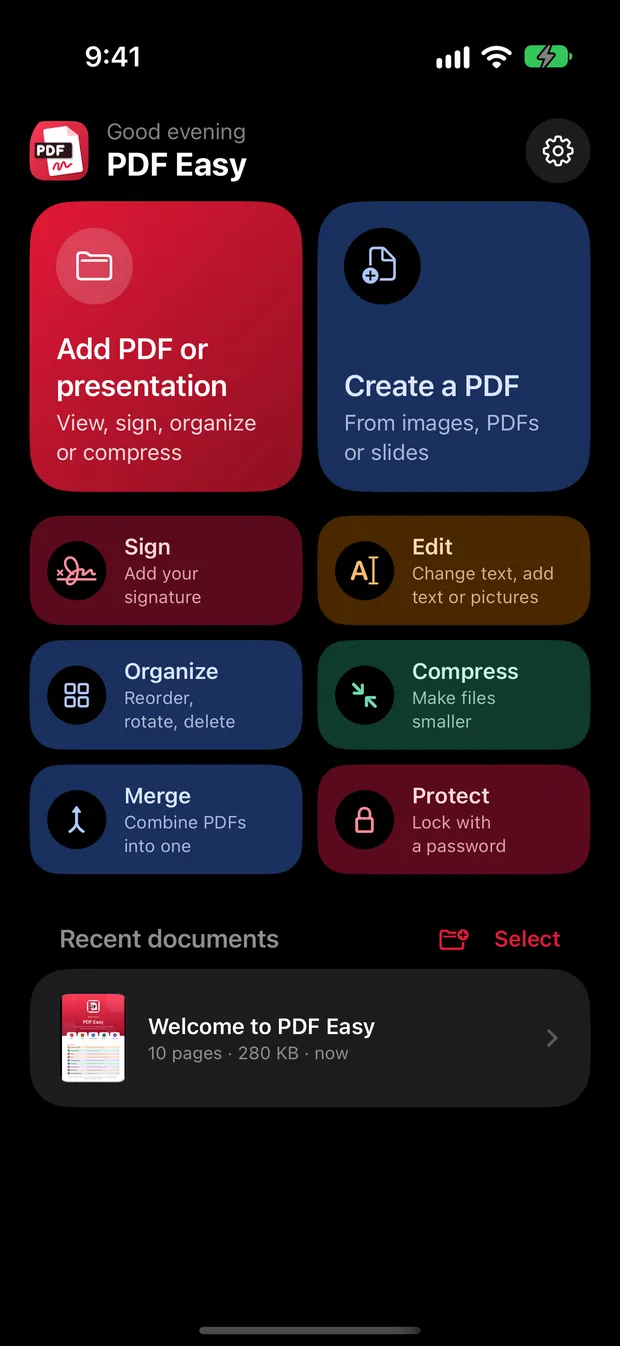
Tap Add PDF or presentation, or tap the Compress card on the home screen.
Tap Compress
Tap Compress in the tool bar.
Choose a level
Pick a level, from best quality to smallest file, and tap Compress PDF at the bottom.
Compare and keep it
See the size before and after. Happy? Tap Use smaller version, then Save. Not quite? Try another level.
Good to know
- The text stays sharp and searchable at every level; only the images get smaller.
- Some PDFs are mostly text and can't get much smaller. PDF Easy tells you, so you can keep the original.
- Compression happens on your device, so private documents are never uploaded.
Questions
Will compressing lower the quality?
Text stays sharp. Images get softer at the smallest level; choose a lighter level if you need sharper photos.
Why didn't my PDF get much smaller?
PDFs that are mostly text are already small. Compression helps most with photos and scanned pages.
Is it free?
Yes. Compress as many PDFs as you like, free and without a watermark.
More guides
How to sign a PDF on your iPhone, for free
Open the PDF in PDF Easy, tap Sign, draw your signature once, drag it into place, then tap ✓ and Save. It's free, works offline and needs no account.
Read the guide →How to edit the text in a PDF on your phone
Open the PDF in PDF Easy, tap Edit, tap the shaded line you want to change, type the new words and tap ✓, then tap Done and Save.
Read the guide →How to merge PDF files into one on your phone
On the PDF Easy home screen, tap Merge, add your PDFs, arrange the pages, then tap Create PDF and Save.
Read the guide →